˙˙Mit Craft API auf Andere Tools entwickeln

→ Spare 40% auf Craft Plus and Family

Imagine With Craft

Nutze die Craft-API mit anderen Tools

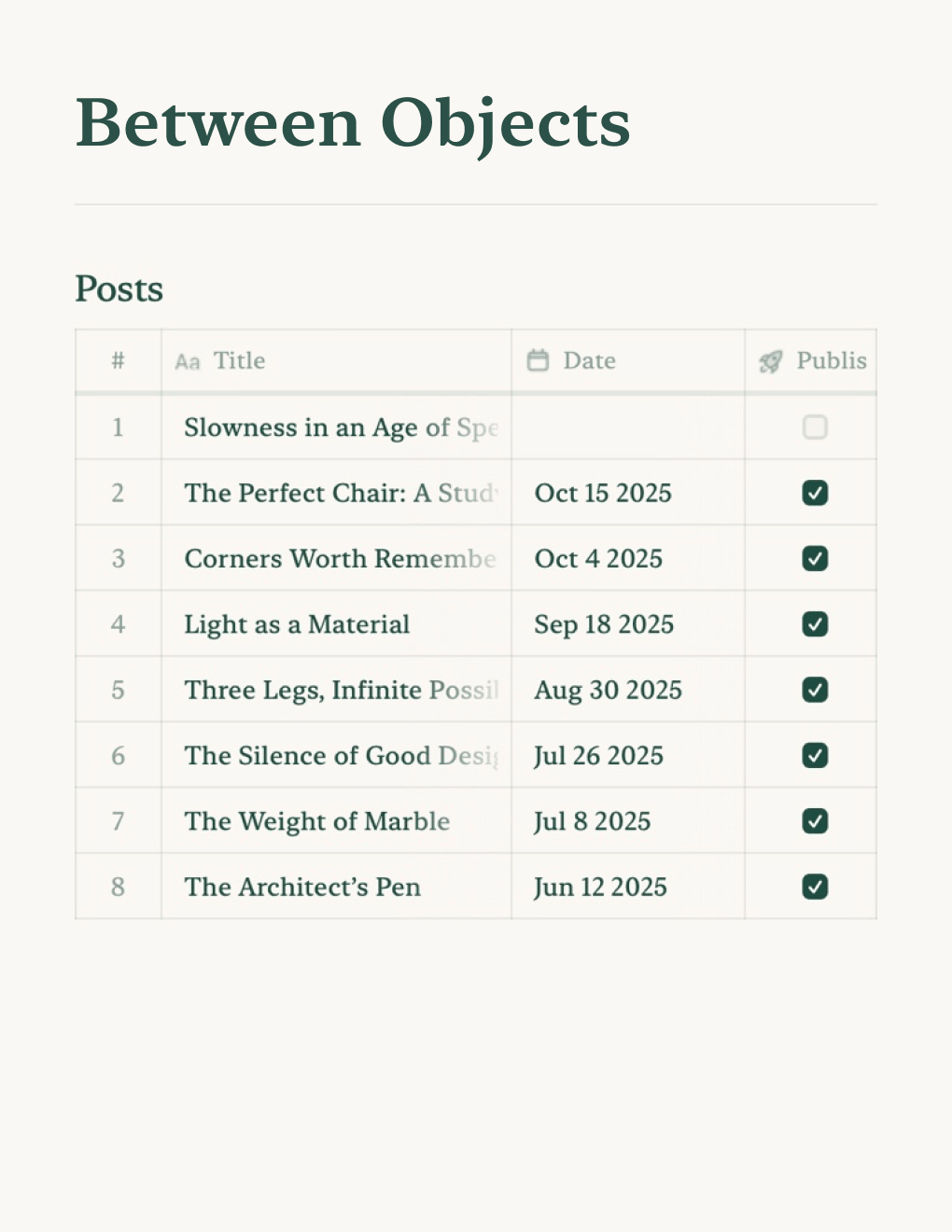
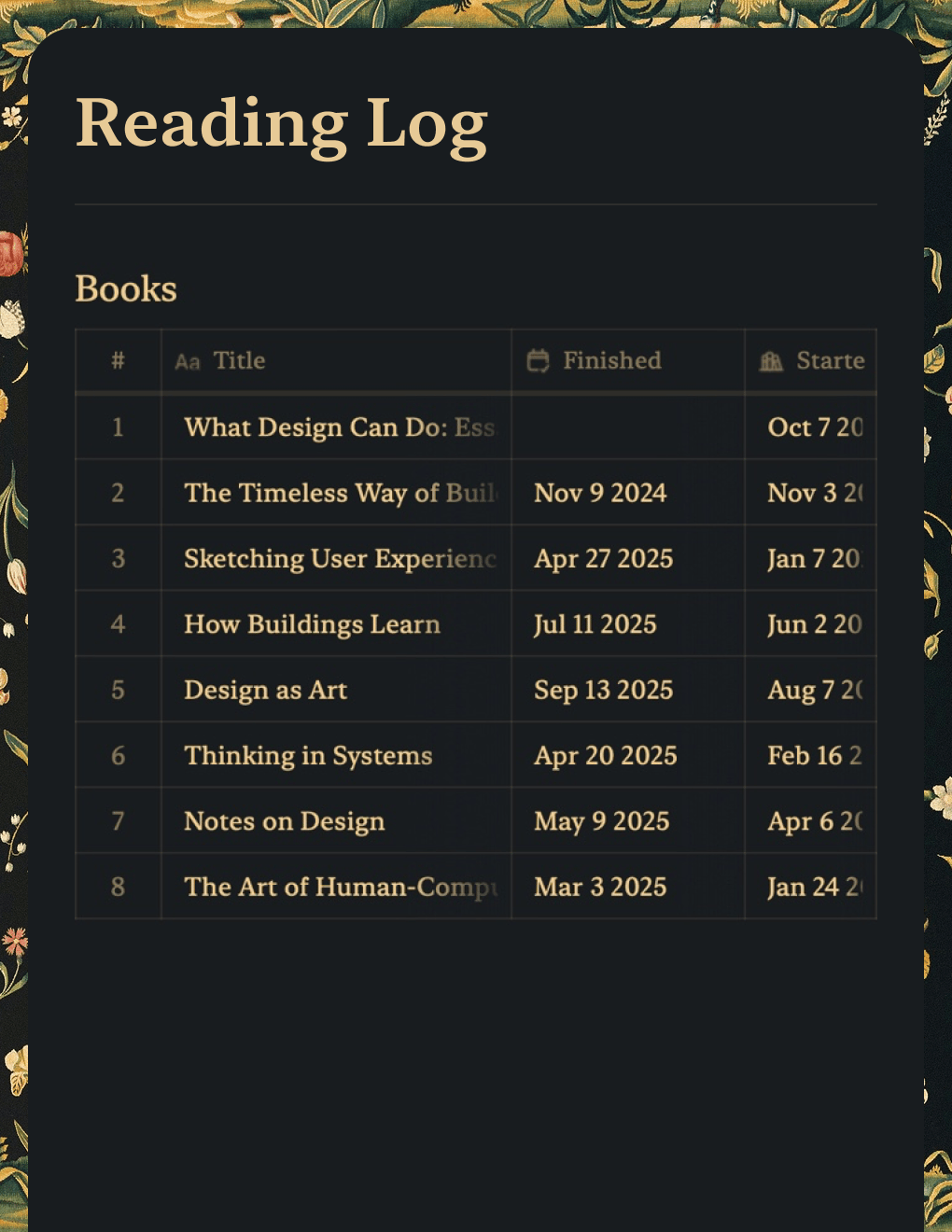
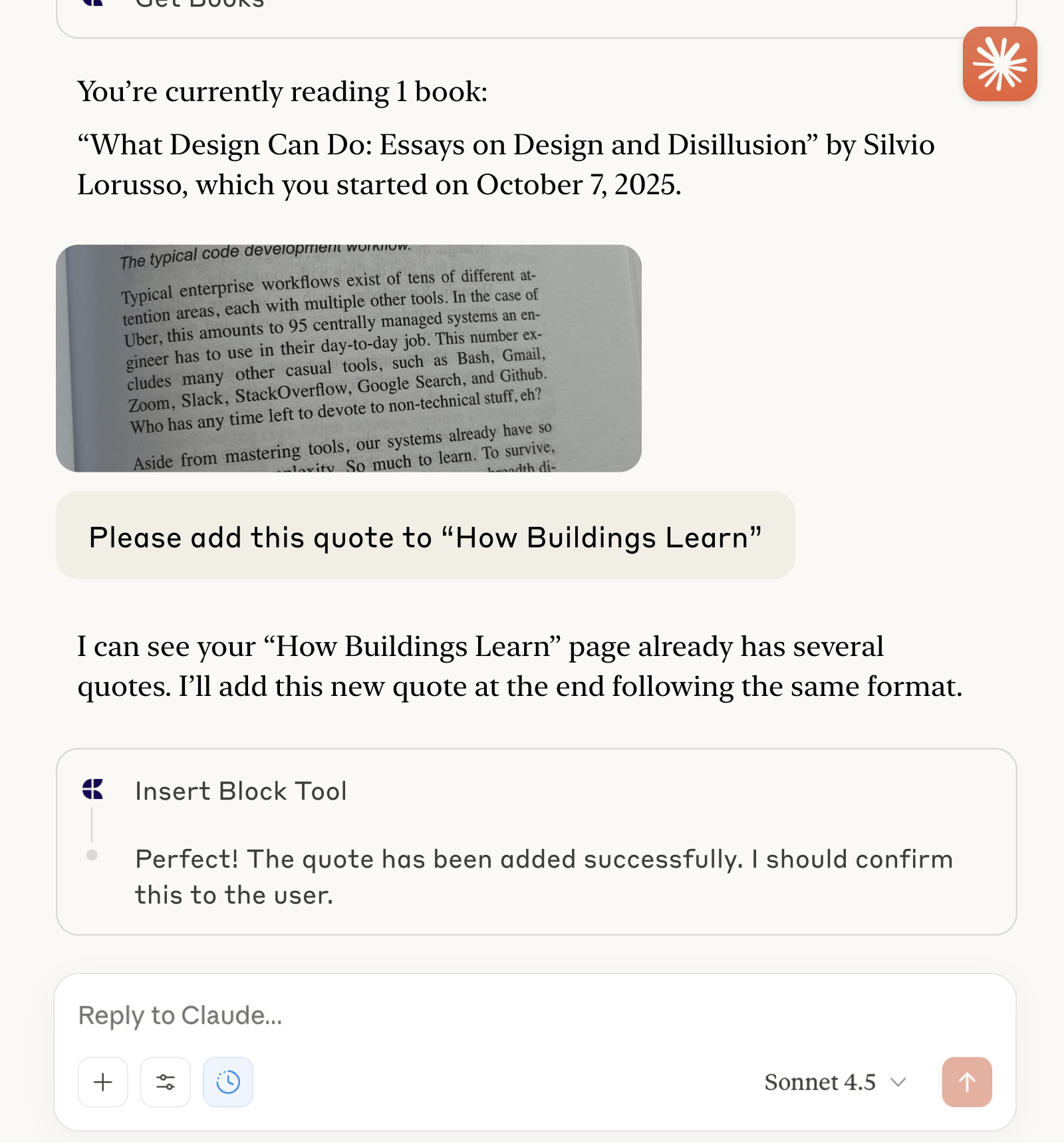
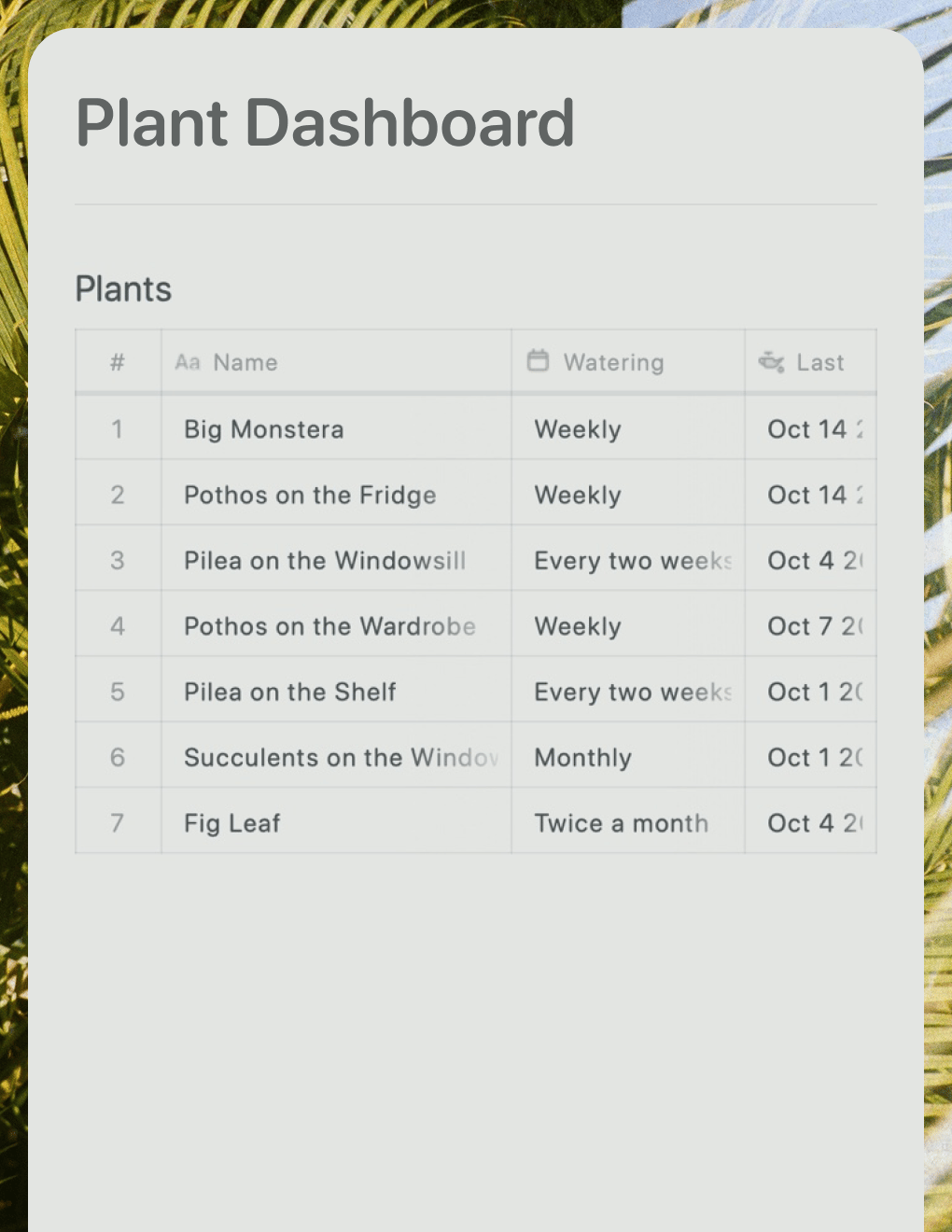
Mit aktivierter API sind deine Craft-Dokumente bereit, die Apps zu unterstĂĽtzen, die du erstellst. Du kannst die API mit jedem KI-gestĂĽtzten Coding-Tool oder jeder Vibe-Coding-Plattform verwenden.

Craft
Andere Tools

API fĂĽr Dokumente aktivieren

Zuerst musst du die API aktivieren, damit Craft einen API-Endpunkt fĂĽr deine Dokumente einrichten kann. Dann verwendest du die API-Endpunkt-URL, um dich von Andere Tools aus mit dem Server zu verbinden.

Schritt 1

Öffne den Tab „Imagine“

Schritt 2

Klicke auf „Add Your First API Connection“

Schritt 3

Konfiguriere deine API-Verbindung mit einem Namen.

Schritt 4

Klicke auf „Add Document“, um auszuwählen, auf welche Dokumente diese API-Verbindung Zugriff hat.

Schritt 5

Die API-URL, ĂĽber die mit deinem Dokument interagiert wird, wird jetzt oben angezeigt

Schritt 6

Klicke auf die Schaltfläche „Download AI Bundle“. Dadurch wird ein Ordner mit der API-Dokumentation und dem Inhalt deines Dokuments heruntergeladen.

Die API in anderen Tools verwenden

Sobald die API fĂĽr deine Craft-Dokumente aktiviert ist, kannst du dich auf das Schreiben eines Prompts konzentrieren, den das Tool zur Erstellung deines Projekts verwenden wird.

Damit das Tool die API nutzen und die Struktur deiner Dokumente verstehen kann, hängst du das AI-Bundle an deinen Prompt an. Dieses Bundle ist ein Markdown-Dokument, das den aktuellen Inhalt deiner Craft-Dokumente sowie die API-Dokumentation enthält.

Schritt 1

Geh zu deinem bevorzugten KI-Tool oder deiner Plattform und hänge das AI-Bundle an, das du von Craft heruntergeladen hast. Für lokal ausgeführte Tools legst du das Bundle in ein leeres Verzeichnis, in dem du das Tool ausführst.

Jetzt kannst du einen Prompt hinzufügen, um die App zu beschreiben, die du erstellen möchtest. Hier ist ein sehr allgemeines Beispiel, das zum Testen verwendet werden kann:

Bitte erstelle eine Website, die den Inhalt meiner verbundenen Craft-Dokumente visualisiert. Anweisungen zum Zugriff auf diese Daten und deren Struktur findest du in der angehängten Datei.

Schritt 2

Dein KI-Tool analysiert das Dokument, nutzt die API, um die Daten abzurufen, und erstellt die Website.

Ein paar Ideen fĂĽr den Einstieg

Beispiele durchsuchen
self.__next_f.push([1,"\"Configure the Shortcut\",\"description1\":\"Open the shortcut and add your Craft API URL. The shortcut will automatically:\",\"bullet1\":\"Access your Calendar app (with permission)\",\"bullet2\":\"Check the weather for your location\",\"bullet3\":\"Pull your active to-do items from Craft\",\"bullet4\":\"Use Apple Intelligence to process everything\"},\"step5\":{\"title\":\"Set Up Automation\",\"description1\":\"In the Shortcuts app, create an automation that runs this shortcut every morning at 7 AM (or whenever you prefer). Choose “Personal Automation” and set it to run at your ideal time.\"},\"step6\":{\"title\":\"Wake Up to Your Day\",\"description1\":\"Each morning, your daily note automatically updates with:\",\"bullet1\":\"\u003cstrong\u003eToday’s events\u003c/strong\u003e – All your calendar appointments at a glance\",\"bullet2\":\"\u003cstrong\u003eWeather forecast\u003c/strong\u003e – Know what to expect outside\",\"bullet3\":\"\u003cstrong\u003eActive tasks\u003c/strong\u003e – Your to-do items from Craft\",\"bullet4\":\"\u003cstrong\u003eSchedule feedback\u003c/strong\u003e – A heads-up if your day is looking overwhelming\"},\"youllSeeSection\":{\"title\":\"What You’ll See\",\"description1\":\"Your morning agenda includes:\",\"description2\":\"\u003cstrong\u003eEvent timeline\u003c/strong\u003e – All your meetings and appointments for the day, so you know what’s coming.\",\"description3\":\"\u003cstrong\u003eWeather overview\u003c/strong\u003e – Temperature, conditions, and what to wear.\",\"description4\":\"\u003cstrong\u003eTask list\u003c/strong\u003e – Your active to-dos from Craft, organized and ready.\",\"description5\":\"Burnout warning – Apple Intelligence analyzes your schedule and warns you if:\",\"bullet1\":\"You have too many tasks for the time available\",\"bullet2\":\"You’re context-switching between too many different documents\",\"bullet3\":\"Your day is packed back-to-back with no breathing room\"},\"result\":{\"title\":\"The Result\",\"description1\":\"You start every day with clarity – knowing exactly what’s ahead, what matters most, and whether you need to adjust your plans before the day gets away from you. Download the shortcut above and customize it — add your own data sources or change what goes into your morning briefing.\"}}},\"aiConverter\":{\"name\":\"AI Converter\",\"award\":\"Fall 2025 · Best Apple Shortcut Integration\",\"description\":\"Capture photos, PDFs, and screenshots as formatted Craft documents via Apple Intelligence.\",\"intro\":\"Photos of receipts, handwritten notes, and PDFs sit in your camera roll doing nothing. This shortcut uses Apple Intelligence to extract and format the content, then writes it directly into Craft — turning scattered captures into searchable, organized documents.\",\"buildIt\":{\"step1\":{\"title\":\"Get Your Craft API Key\",\"description1\":\"Start by enabling the API on a Craft document where you want to receive converted content. Generate your API key and save it somewhere safe – you’ll need it in the next step.\"},\"step2\":{\"title\":\"Download the Shortcut\",\"description1\":\"Get the AI Converter shortcut with this link. This is the heart of the workflow – it handles all the heavy lifting of converting different content types into formatted text.\"},\"step3\":{\"title\":\"Configure Your API Endpoint\",\"description1\":\"Open the shortcut in the Shortcuts app and add your Craft API details:\",\"bullet1\":\"Your Craft document’s API URL\",\"bullet2\":\"Your API key (the 11-digit code)\",\"bullet3\":\"Optionally, your published website page if you want to use that instead\",\"description2\":\"Save the shortcut to your home screen for quick access.\"},\"step4\":{\"title\":\"Choose Your Input Method\",\"description1\":\"The shortcut gives you four options when you run it:\",\"description2\":\"\u003cstrong\u003eUse File in Clipboard\u003c/strong\u003e – Copy anything (text, images, PDFs, screenshots) and the shortcut processes it immediately.\",\"description3\":\"\u003cstrong\u003eChoose Photos for OCR\u003c/strong\u003e – Open your Photos app, select images, and the shortcut extracts and formats the text.\",\"description4\":\"\u003cstrong\u003eChoose a File from Folders\u003c/strong\u003e – Browse your files and select images, PDFs, or text documents to convert.\",\"description5\":\"\u003cstrong\u003eText Prompt\u003c/strong\u003e – Type or paste text directly, or ask the AI a question and it will"])˙˙˙˙